

by Michael Ross
Every SharePoint Administrator will eventually run into issues that not only cause frustration, but potentially require massive amounts of time spent piling through tedious code. Luckily there are PowerShell commands that can ease frustration and make you the hero-of-the-day.
Example 1: Finding a Correlation ID error
One frustrating error SharePoint users will occasionally experience is the dreaded 'red X' with a cryptic correlation ID error. When that happens, the SharePoint Administrator must perform the equally frustrating task of looking through the logs to find the cause of the error.
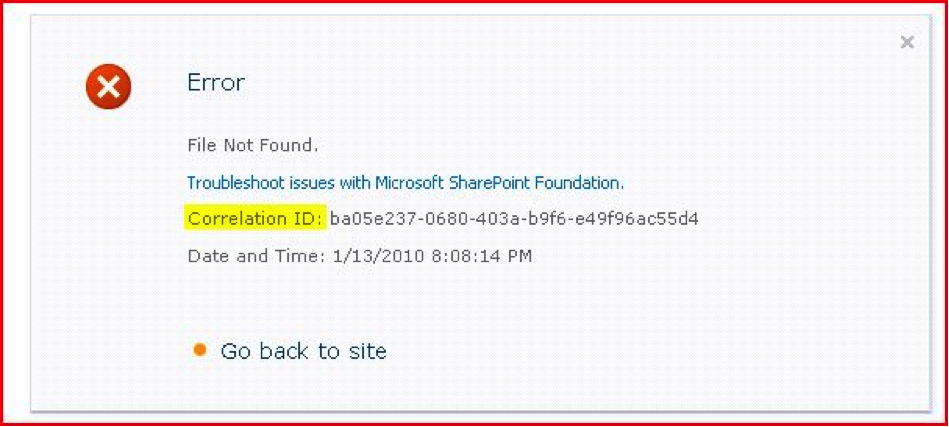
Wouldn’t it be nice if there was a command that will search the log files for the correlation ID? The command Merge-SPlogfile will automatically search the logs for the error ID. Better than that, the command will search ALL the servers in the farm and place a log file on the server that you will the command. Here is an example of a PoSh cmdlet that will place a .log file on the C drive of the server which will only contain errors corresponding to the correlation ID:
Merge-SPlogfile –Path c:\log.log –Correlation ba05e237-0680-403a-b9f6-e49f96ac55d4
Example 2: Quickly restore a deleted site collection
One day I received a call from a frantic customer who accidentally deleted a very valuable site and needed it restored ASAP. I was still new, so their panic started to make me panic - especially when I heard that the deleted site had also been emptied from the Recycle Bin and the process to restore a site from SQL takes more time than we had. Luckily, one of my team members was watching over my shoulder and said, “Use PowerShell to find the site and then restore it - it shouldn't even take 10 minutes." Brilliant! Here are the PowerShell commands to view and restore a deleted SharePoint site:
Get-SPDeletedSite | select Path , siteid # this will generate a list of all deleted sites and their GUIDs as seen below:

Restore-SPDeletedSite -Identity (SITE ID) # This will restore the deleted site
Example 3: Check for errors
One day I received an assignment to migrate a content database from SharePoint 2010 to SharePoint 2013. This should have been a piece of cake...but 3 hours later I realized that my cake was stale! The upgrade had simply failed and I did not know why. Eventually I found a command that will check the content database - quickly solving the issue and adding milk to my cake (it's good, try it):
Test-SPContentDatabase -name (db name, i.e., WSS_Content_My) –webapplication (webapp name, i.e., "SharePoint - my.variacom.local")
When I ran the above PoSh cmdlet, it revealed that a particular list was blocking the upgrade:

I noticed that the Upgrade Blocking in was True and there was an issue with the list 'Bigfoot Shoes'. That list had 10,000 items and 259 ROWS! Once I deleted that list, with the customers’ permission, the upgrade to SharePoint 2013 was successful.